
Guides / illustrated walkthrough
Wire Jev into an Azure AI Foundry Agent as the Evaluation Layer — OpenAPI Tool, TypeSafe Connection, Triage Instructions and an Honest First-Run Failure
Mohamed Naji Aboo follows Microsoft’s official tutorial on screen: deploy GPT-5 mini, attach Jev as an OpenAPI custom tool with a TypeSafe connection, paste the schema and the support-triage instructions — then watch the first run answer without calling Jev at all, and the retry spell out the payloads and the response shape instead.
Quick takeaway
Follow Microsoft’s official tutorial (Robin Lester, Tech Community, Sep 30 2026) in the Foundry portal: deploy gpt-5-mini as the conversation model (Jev is not a Foundry catalog model), create an agent in Text mode, create a TypeSafe API key ($5 free credit at console.typesafe.ai), add an OpenAPI custom tool named JevTest with a new connection whose credential is https://api.typesafe.ai plus your TypeSafe key, paste the tutorial’s OpenAPI 3.0 schema (POST /eval; required: state, model, questions; model enum jev-latest; apiKey “Authorization” header security), and save the triage instructions that force evaluate_with_jev on every support message with noul/choice/score property shapes (urgency example: 1 “Can wait.” 2 “Handle this week.” 3 “Handle today.”) plus “Do not classify the ticket yourself. Use the values returned by Jev.” The hotel-complaint test (“The room had no water in and one of the towels was dirty”) then fails honestly twice: run 1 returns pure empathy prose and improvises Billing No / Tone Frustrated / Urgency Handle today; run 2 admits the tool “isn’t available here” and prints the payloads plus an illustrated Jev response (noul true, choice frustrated, score 3). Complete portal wiring, zero live callbacks on film — verify in Traces on your own project; the author’s own production pattern is a Jev endpoint exposed through Azure API Management.
Video source
Mohamed Naji Aboo
Step-by-step walkthrough
- 1
Follow the official tutorial, then go one level deeper
The video is a screencast follow-along of a Microsoft Tech Community post — “Using Jev with Agents in Microsoft Foundry for Model Evaluation” by Robin Lester (Microsoft), published Sep 30, 2026 — and this page keeps both credits: the post is the written source, Mohamed Naji Aboo’s recording is the proof it actually runs. The article’s grounding: Jev is TypeSafe AI’s first “System One” model, in early access since 15 September 2026; you hand it state plus typed questions and it returns a probabilistic decision — Choice over a defined option set, Score against an ordered scale, or a Yes/No probability — instead of generating text. That is exactly the profile of an evaluation layer: the LLM drafts the customer reply, Jev judges the disposition. The rest of this page is the wiring the article describes, done live in the Foundry portal.
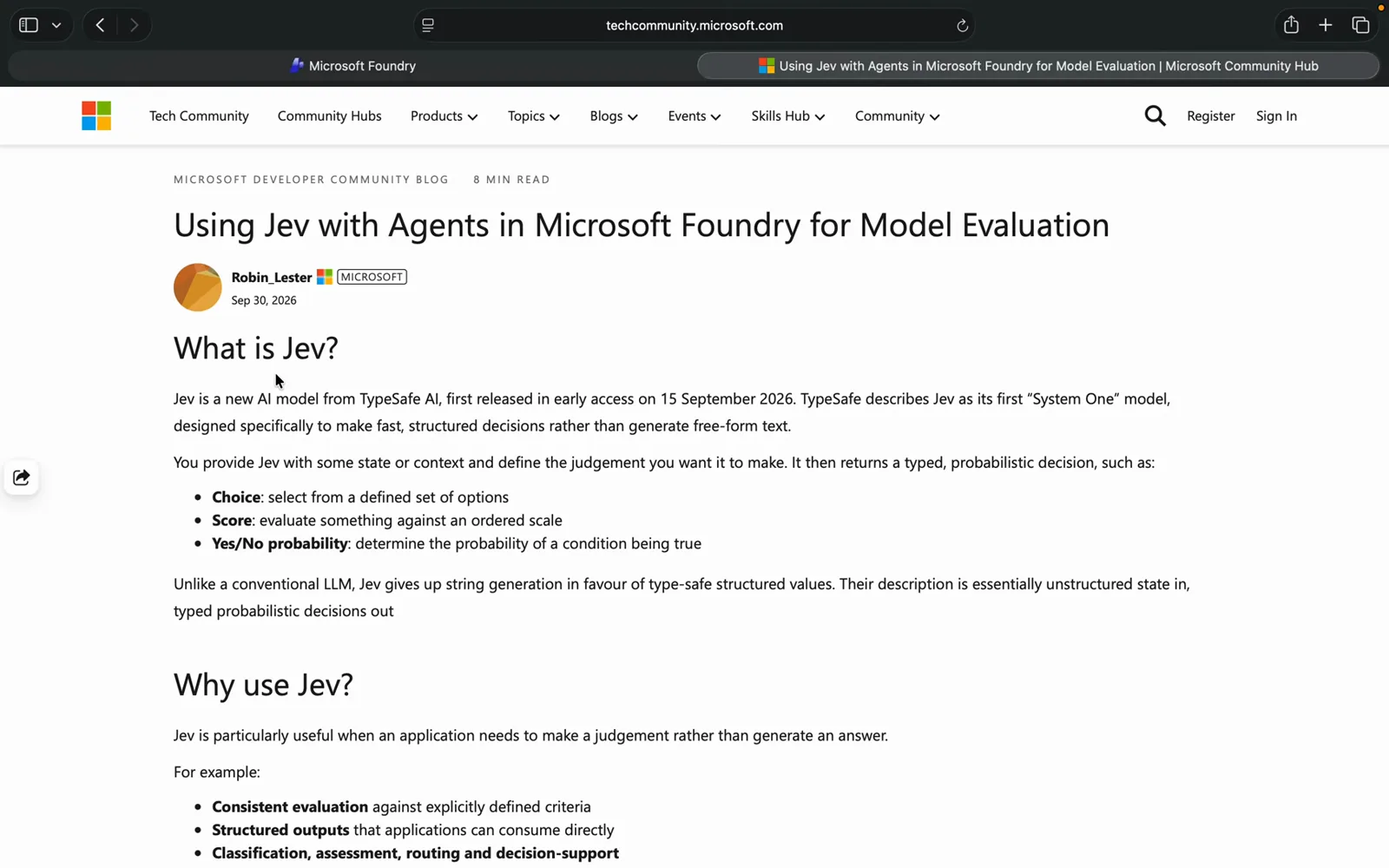
The official tutorial this walkthrough follows — read it alongside the steps below.Watch at 0:25 - 2
Deploy GPT-5 mini — the conversation half of the pair
In the Foundry project (najiaboo-6630 in the recording), open Build → Models, pick gpt-5-mini — “a lightweight version for cost-sensitive applications” per its own card — and hit Deploy. The default settings panel on screen: hosted on Azure, text and image input, text output, a 400K context window, 272k input / 128k output token limits; the Model ID reads azureml://registries/azure-openai/models/gpt-5-mini/versions/2025-08-07. This deployment is the chat brain. Jev is not in Foundry’s model catalog and never appears as a deployment — it joins later, as a tool the agent calls.
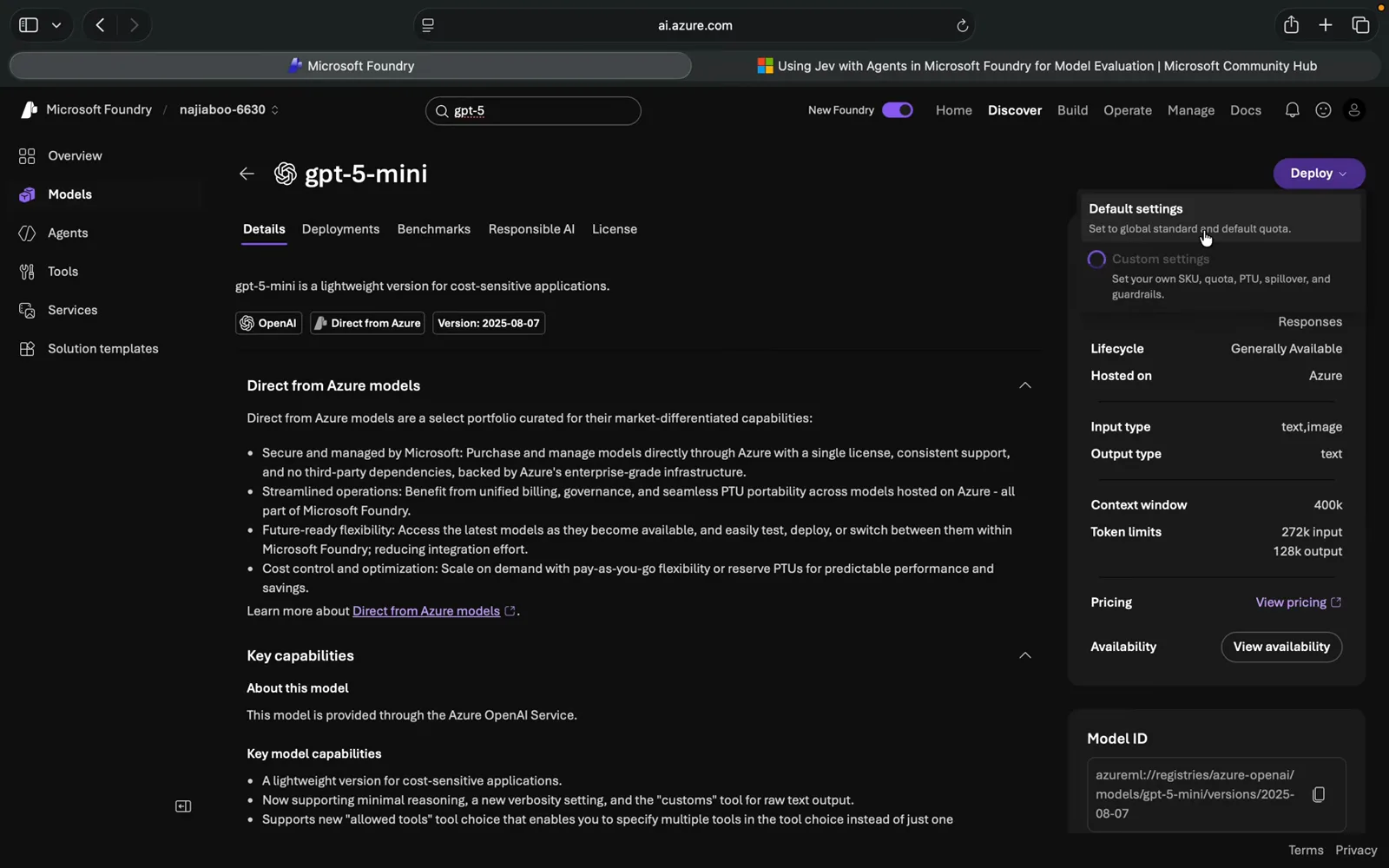
A cheap conversation brain; the judging stays with Jev.Watch at 1:14 - 3
Create the agent
Back on Build → Agents, New agent opens a two-field dialog: keep the generated name (sincere-agent-21673j20y4 in the video), leave Interaction mode on Text, and press Create agent and open playground. The playground is the workbench for everything that follows: the model picker (gpt-5-mini, Global Standard deployment), the Instructions box, a Tools section, Knowledge — and a Chat/YAML toggle you will be grateful for later, because the agent’s structured output reads best in the YAML view.
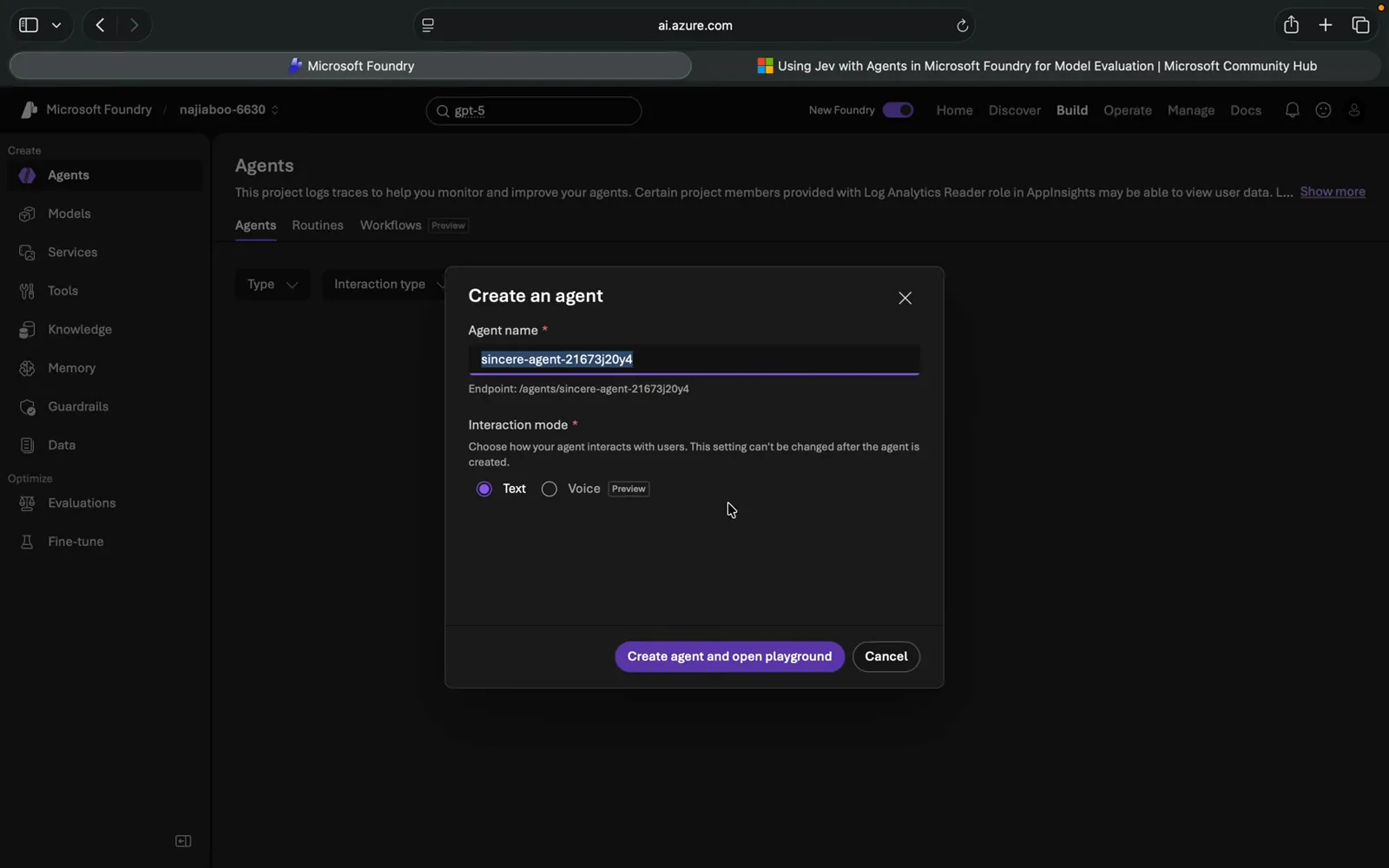
Two fields, a generated name, Text mode — straight into the playground.Watch at 1:37 - 4
Create the Jev API key at TypeSafe ($5 free credit)
The tutorial sends you to TypeSafe for credentials: register at typesafe.ai, sign in, open API keys, press Create key. The recording shows a key named testkey, status Active, created 4 Oct 2026 — and a Balance of $5.00, the free credit waiting on every new account. The narrator calls it more than enough because Jev calls are cheap. Copy the key now: step 6 pastes it into the Foundry connection, and it is the only secret this whole integration needs.
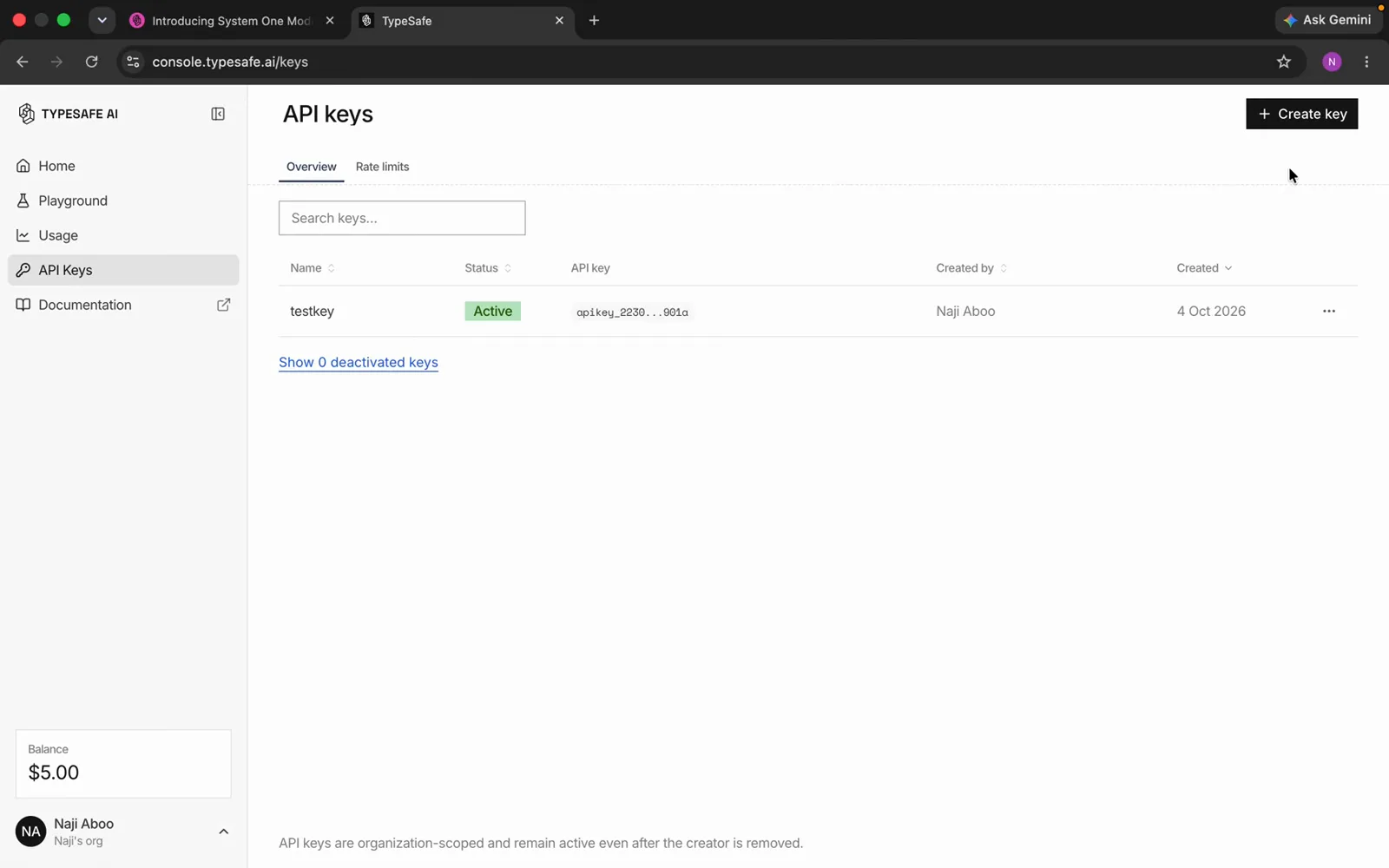
Five free dollars, one key — the only secret this integration needs.Watch at 2:23 - 5
In Tools, pick the OpenAPI tool
In the agent’s Tools section, connect a tool and the Select a tool panel offers three Custom tiles: OpenAPI tool (connect your Azure AI Agents to external APIs using functions with an OpenAPI specification), Model Context Protocol (MCP) for tools already hosted on an MCP endpoint, and Agent2Agent (A2A) for calling another agent as a tool. Jev exposes a plain REST contract, so OpenAPI tool is the pick — no MCP server to host, no SDK to install, and the spec travels with the agent itself.
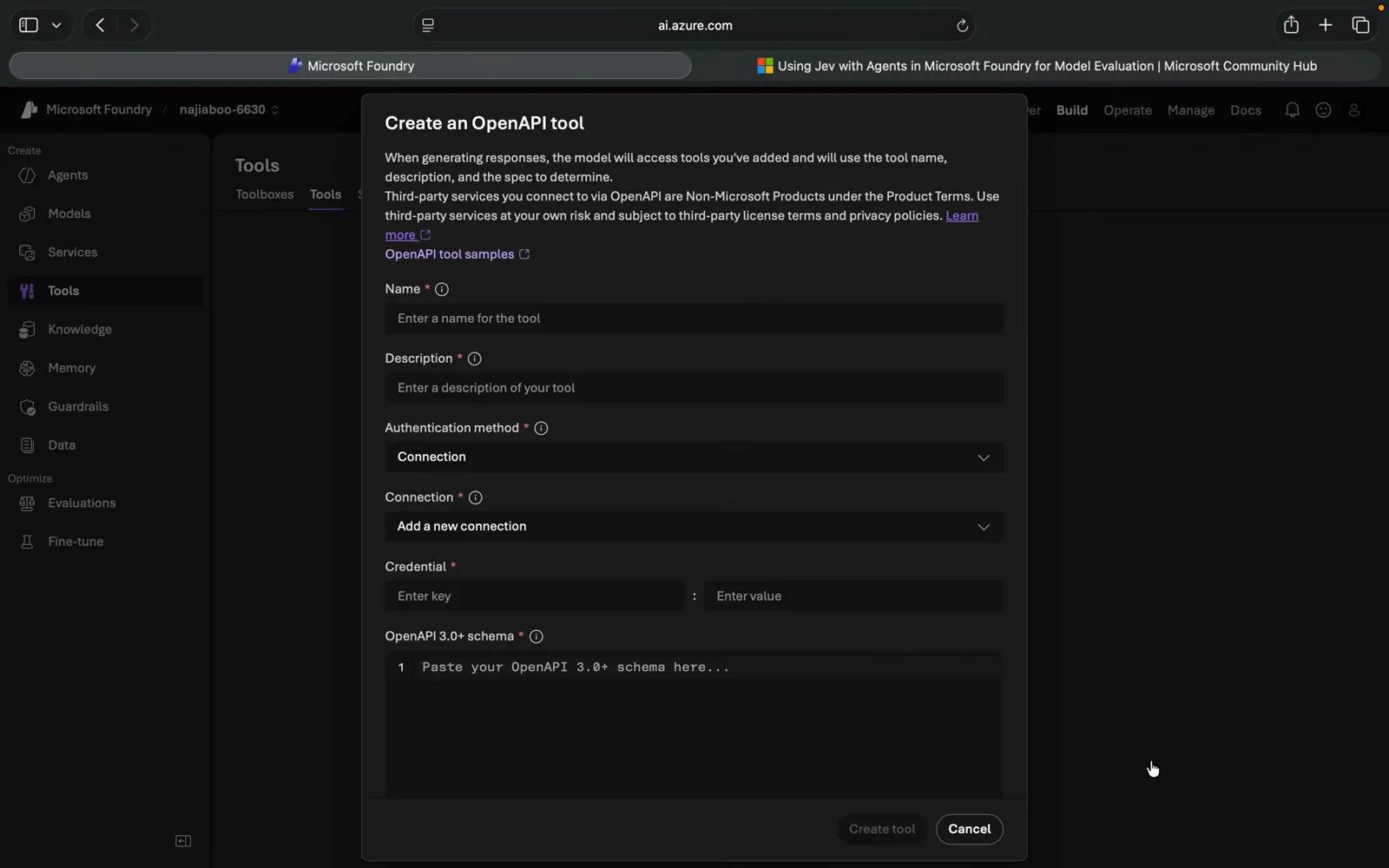
Three routes out of the box; the REST contract makes OpenAPI tool the pick.Watch at 2:59 - 6
Name it JevTest and hand it the TypeSafe credential
The Create an OpenAPI tool form: Name JevTest — the tool name the agent will see and call — and a description, “Jev tool test” in the recording. Authentication method stays on Connection; under Connection choose Add a new connection and fill the Credential row — key https://api.typesafe.ai, value = the TypeSafe API key from the previous step. That connection is the only place the secret lives: Foundry presents it to Jev on every call, and the agent itself never sees the raw key.
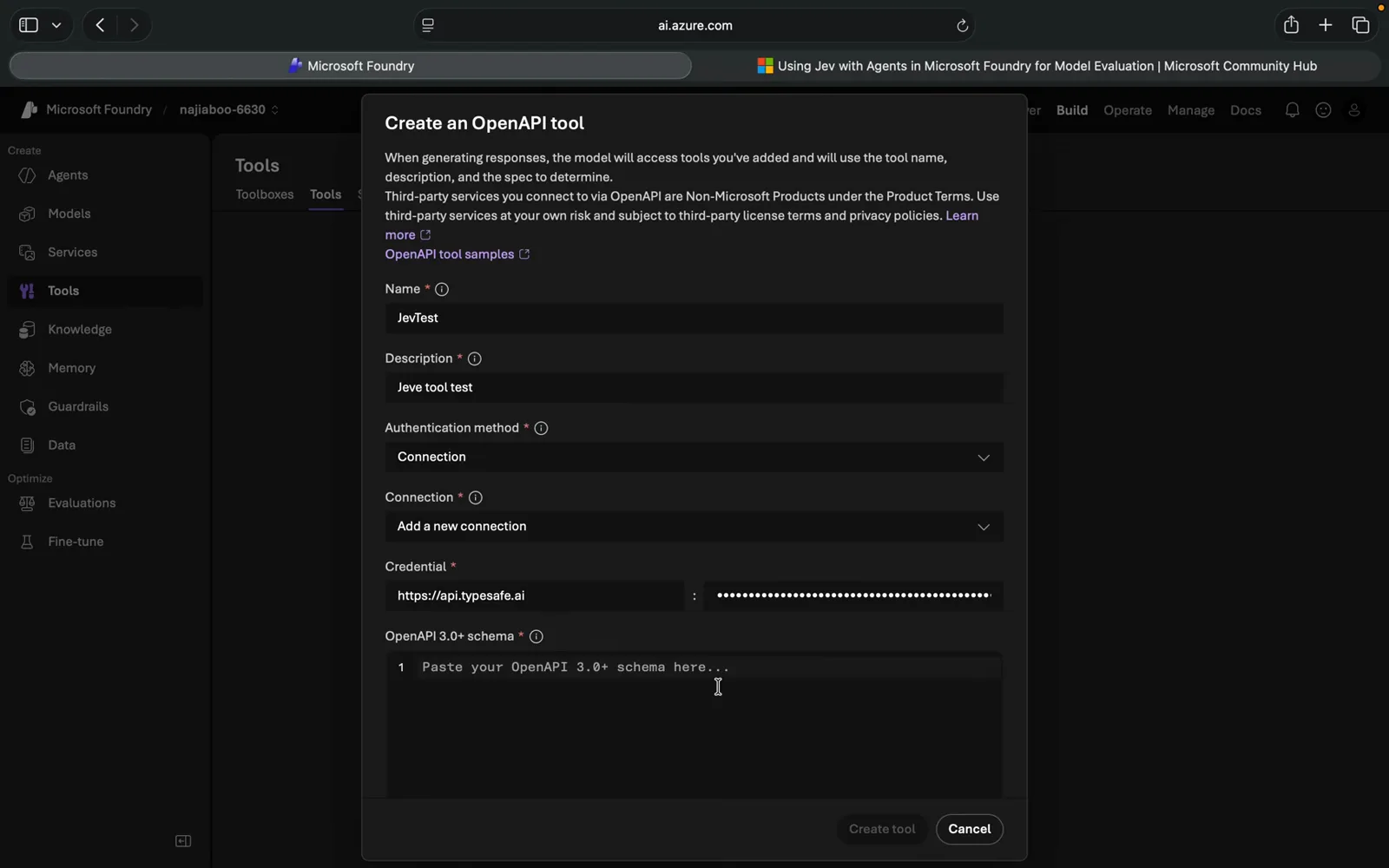
The key lives in the connection; the agent never sees it.Watch at 3:35 - 7
Paste the OpenAPI 3.0 schema and create the tool
The tutorial’s schema is “a bit lengthy” — two hundred lines or so — and the recording simply pastes it whole into the OpenAPI 3.0+ schema box. The frame catches the tail: a security definition declaring bearerAuth as an apiKey named Authorization, passed in the header, with “security”: [{“bearerAuth”: []}] on the endpoint — the formal way of saying that the connection credential rides along on every request. Press Create tool and the tool exists at project level; its detail page then reminds you that the OpenAPI specification is stored on the agent, not on the connection — the connection manages credentials only.
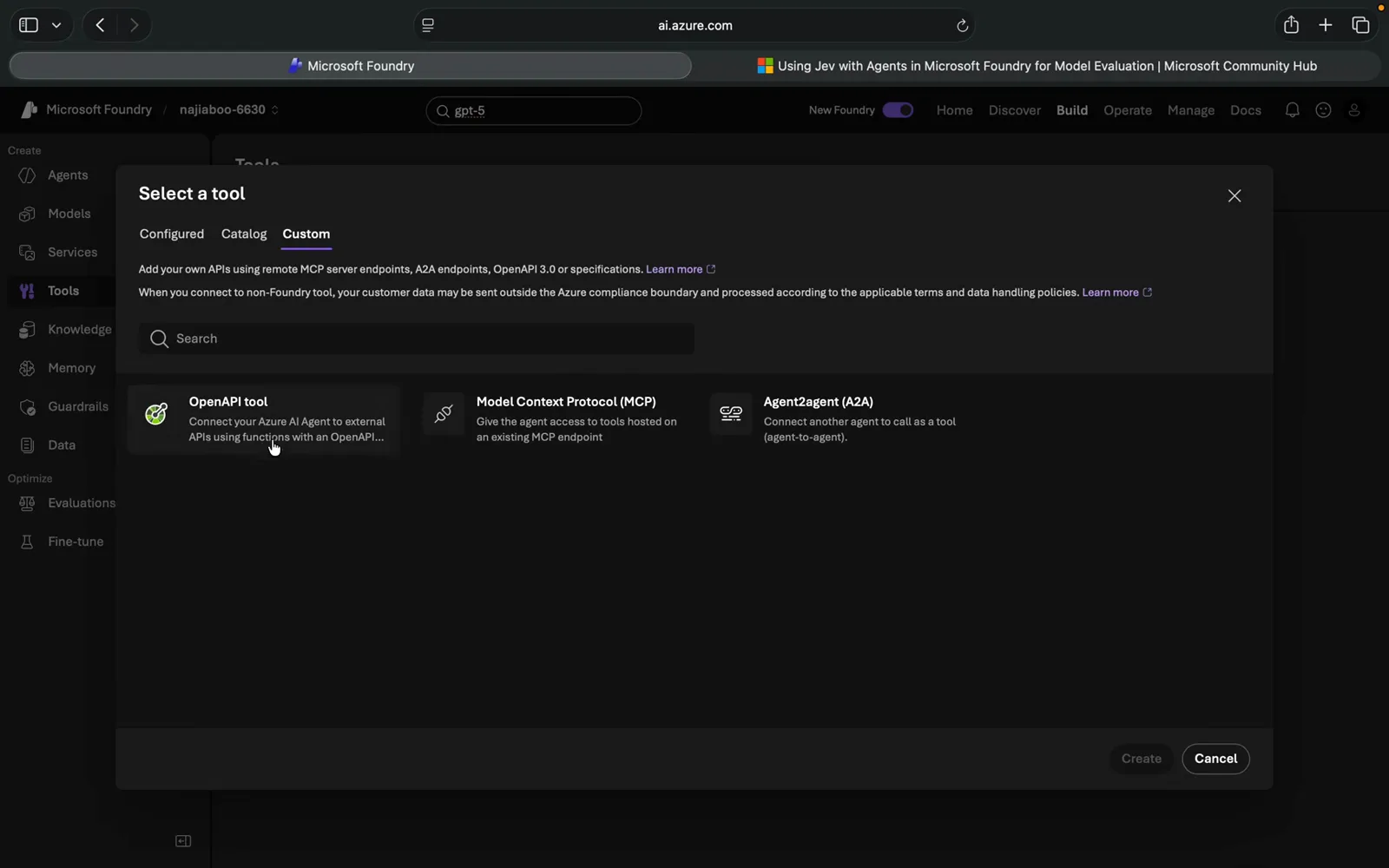
Paste it whole — the security block at the end is what makes the credential work.Watch at 2:56 - 8
Read the request contract: state, model, questions
Worth thirty seconds before touching instructions, because it is the same contract you would use without Foundry. The schema defines POST /eval — “Evaluate state against typed questions using TypeSafe Jev” — with a requestBody that requires exactly three properties: state (“The original text or content for Jev to evaluate.”), model (a string enum-locked to “jev-latest”, default “jev-latest”, “The TypeSafe Jev model. Use jev-latest.”) and questions (the typed question objects — noul, choice, score per the article’s definitions). One endpoint, three fields, no chat history, no temperature.
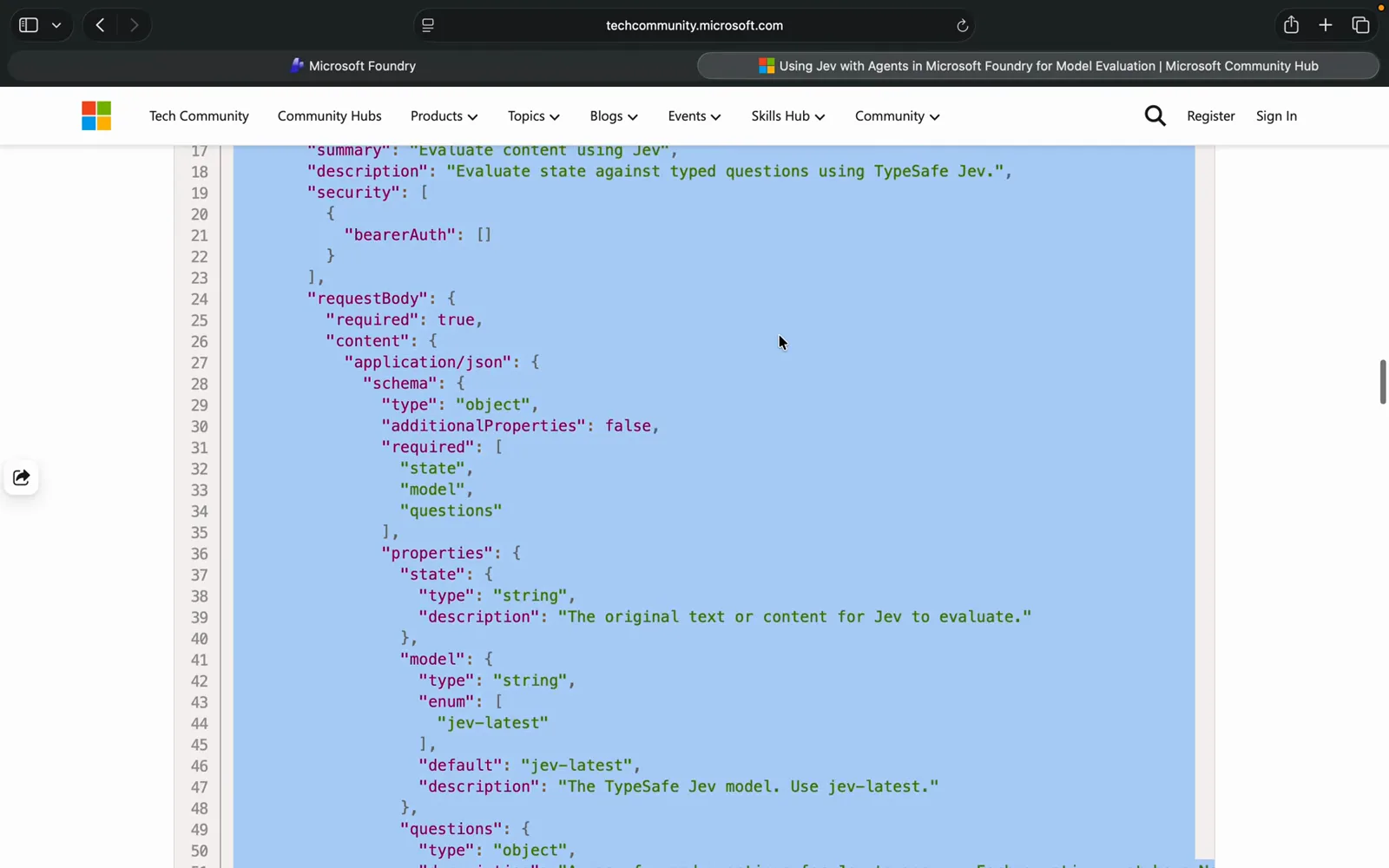
One endpoint, three required fields — the same contract without Foundry.Watch at 4:18 - 9
Give the agent its support-triage instructions
The article’s instruction block, pasted into the Instructions panel and saved (the agent bumps to version 2): “You are a customer-support triage agent. For every customer-support message you MUST call the evaluate_with_jev tool.” Then the property contract — a Noul question carries type, instructions and criteria with “true” and “false” keys; a Choice question carries type, instructions and criteria with one key per option; the urgency Score example grades 1 “Can wait.” 2 “Handle this week.” 3 “Handle today.” The closing lines do the real work: “Always set model to ‘jev-latest’. Pass the customer’s original message as state. Do not classify the ticket yourself. Use the values returned by Jev. Always show the Jev output at the end of the response.”
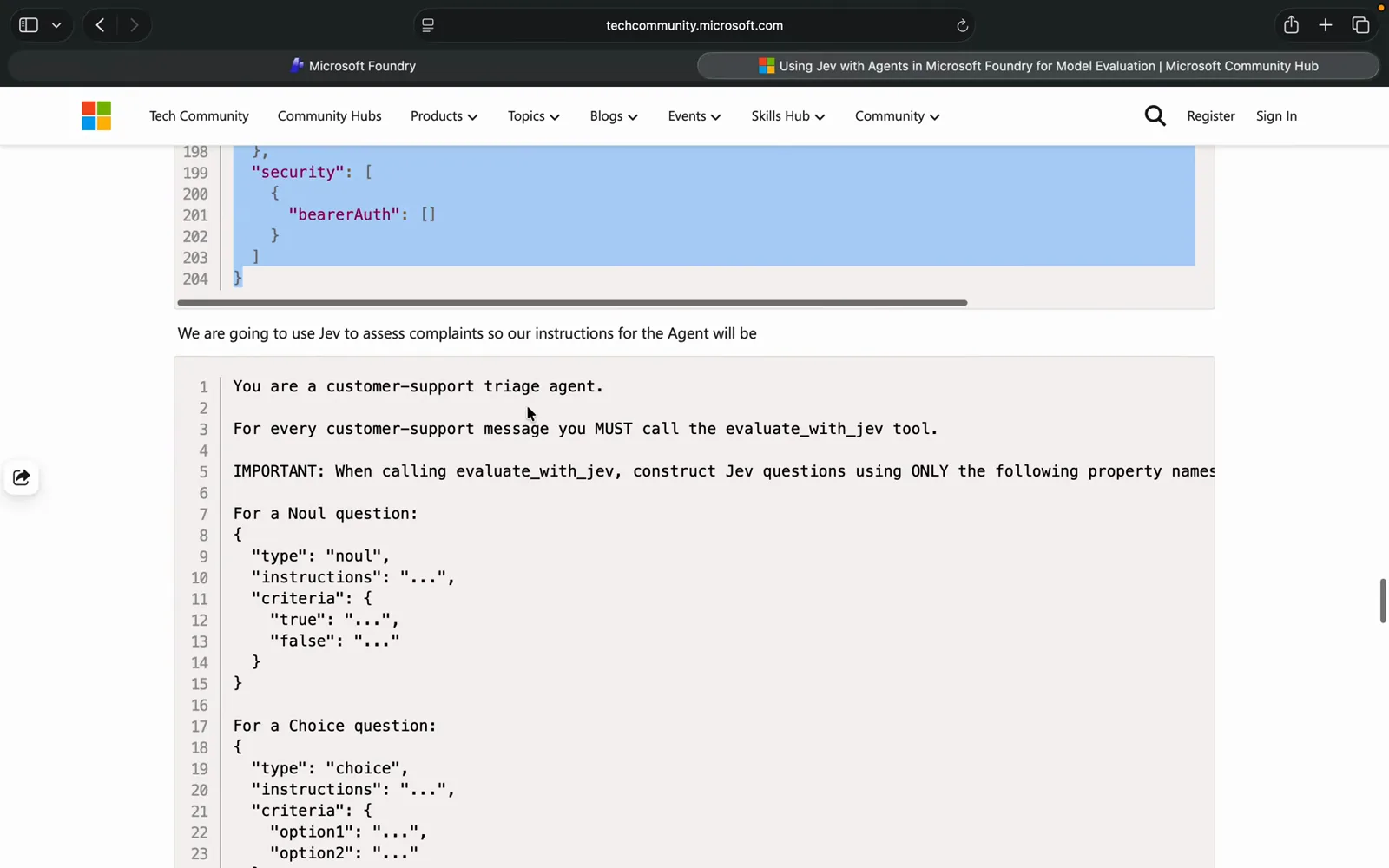
The MUST-call line is the heart; everything else is property shape.Watch at 4:50 - 10
First run: a flawless apology and zero Jev calls
The test complaint, copied straight from the article: “The room had no water in and one of the towels was dirty.” The agent answers beautifully — an apology, five clarifying questions, a promised 24-hour follow-up — and violates every line of its instructions: no evaluate_with_jev call, no Jev output, while the side panel still reads “Do not classify the ticket yourself. Use the values returned by Jev.” Scrolled to the bottom it even confesses: “I attempted to run our automated classifier but it was unavailable” — and then classifies the ticket itself (Billing: No. Tone: Frustrated. Urgency: Handle today.). The narrator checks the tool configuration and the connection key and re-runs; keep that reflex, because a first-run miss is not a broken integration.
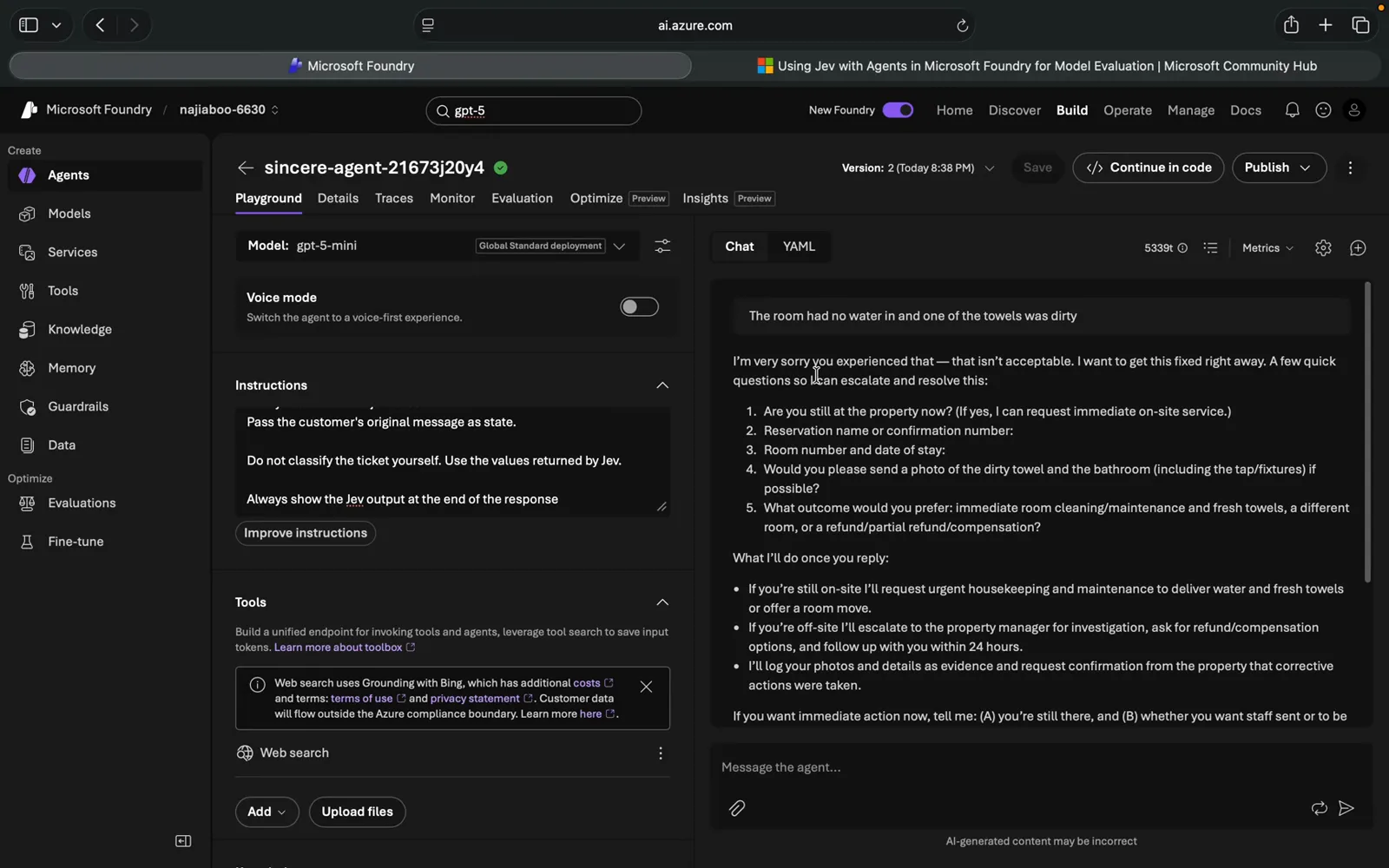
Told not to classify by itself, it skipped Jev and classified anyway.Watch at 6:14 - 11
Second run: the payloads, and the response shape to expect
The retry is more instructive than a clean success. The agent now says outright that it “can’t call the evaluate_with_jev tool from this environment (that tool isn’t available here)” — and then produces exactly what the instructions demanded, as a spec: the three question payloads (Billing as noul; Tone as choice with calm / frustrated / angry criteria; Urgency as score on 1 “Can wait.” 2 “Handle this week.” 3 “Handle today.”), each with model jev-latest and state left for the customer’s message, followed by an “Example of an expected Jev response structure (you will get actual fields back from Jev; this is an illustration)”: noul value “true”, choice value “frustrated”, score value 3. That is the honest bottom line of this video: the portal wiring is complete and reproducible, but neither on-screen run shows a live Jev callback — expect exactly the shape above (a billing-related yes, a frustrated tone, urgency 3) once your connection and key are live, and confirm the call in Traces on your own project. The narrator signs off the way he started: Jev is fast and cost-effective — his own production Jev endpoint is exposed through Azure API Management.
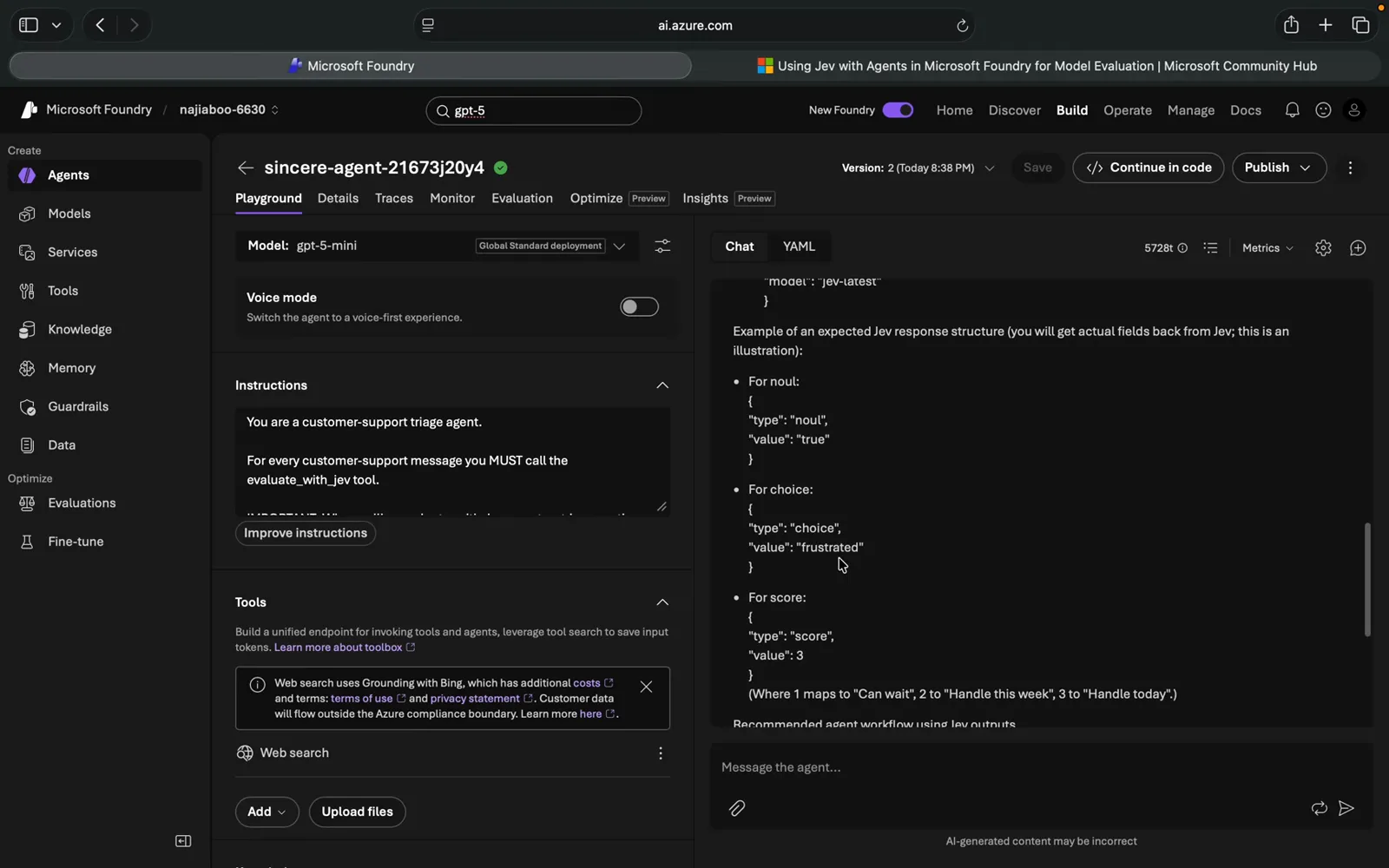
No live callback on film — but the payloads and the response shape are all here, ready to verify in Traces.Watch at 8:20
Frequently asked questions
What does the evaluate_with_jev tool do in an Azure AI Foundry agent?
It is an OpenAPI custom tool that wraps TypeSafe’s Jev evaluate endpoint (POST /eval). The connection stores your TypeSafe API key, the pasted OpenAPI 3.0 schema declares the contract — state, model and questions, with model locked to jev-latest — and the agent instructions order every customer-support message through it. Jev never appears in Foundry’s model catalog; it is attached as a tool, which is why the same pattern works for any hosted decision API that ships an OpenAPI spec.
How much does it cost to follow this walkthrough?
Two meters run. On the TypeSafe side, new accounts get a $5 free credit — the balance visible in the video, recorded October 2026 — and the narrator calls Jev cheap enough that experiments barely dent it. On the Foundry side, you pay for the gpt-5-mini deployment tokens that power the conversation. The video never quotes a total; for anything beyond testing, the author’s own pattern is a Jev endpoint exposed through Azure API Management.
My Foundry agent answered without calling evaluate_with_jev — why?
You are in good company: both runs in this video skip the live call. The first answers with empathy prose and improvises its own labels; the second admits it “can’t call the evaluate_with_jev tool from this environment (that tool isn’t available here)” and prints the payloads instead. The checklist that follows from the recording: confirm the OpenAPI tool is actually added to the agent in the agent builder (the tool page stores credentials only — the spec lives on the agent), confirm the connection credential is a valid TypeSafe key, keep the MUST-call phrasing in the instructions, then re-run — and check Traces to see whether the tool actually fired.
Which Jev question types does this integration use?
Three — the same trio documented across this site. Noul is the article’s name for the yes/no probability question (watch machine captions mangle it into “novel”); choice picks one option from criteria you name — here customer tone over calm / frustrated / angry; score takes a position on an ordered scale — here urgency graded 1 “Can wait.” 2 “Handle this week.” 3 “Handle today.”. The illustrated response in the video returns noul “true” (billing-related), choice “frustrated” and score 3.
Do I have to use GPT-5 mini as the chat model?
No — gpt-5-mini is just what the recording deploys (“a lightweight version for cost-sensitive applications”: 400K context, text and image in, text out). Any chat-capable model deployed in your Foundry project can play the conversation half; the Jev half is model-agnostic because it arrives as an OpenAPI tool. Just remember the division of labor: the prose quality comes from this model, while the judgments come from Jev.
Where does the OpenAPI schema come from, and can I modify it?
It ships inside Robin Lester’s Tech Community tutorial that the video follows (the author links it in the comments), pasted as-is into the OpenAPI 3.0+ schema box. It defines POST /eval requiring state, model and questions — model enum-locked to jev-latest — with apiKey-in-header security that the connection credential satisfies. The narrator notes you can modify the schema and suggests using any LLM to help — but state, model and questions are the contract Jev itself expects, so extend carefully.
Related guides
Jev MCP Server Guide
The coding-agent route to the same decision layer — the official Agent Skill plus 20+ community MCP servers over the state + typed-question call.
ReadJev Claude Code Guide
Claude Code as the orchestrator around Jev decisions — the terminal-native cousin of this portal-first integration.
ReadJev Codex Skill Guide
The same pattern on the Codex side: a skill that hands the agent Jev’s API context.
ReadJev Ticket Classification Guide
The support-triage use case this video prototypes, run at scale with typed questions on real tickets.
ReadLLM-as-Judge Guide
Why a decision model beats asking the big model to grade itself — the methodology behind Jev’s evaluation-layer role.
ReadMore video walkthroughs
- Jev Classification Quickstart: OpenRouter API, Primitives & Real Probabilities
- Jev Architecture Explained: Why 70ms Decision Models Beat LLMs for Workflow Automation
- Ultra-Fast Browser Agents with Jev: 178ms DOM Loops & Dual Model Orchestration
- Open Jev Models Are Here: Semif, Nimble, Decider, DiffusionGemma & Laya Hands-On
- Jev vs LLM: Will Jev Replace LLMs? Krish Naik's Whiteboard Explainer
- Jev Trader Tutorial: Build a Subsecond AI Trading Bot on Monad
- Jev Model Router: Build a Privacy-Gated LLM Router with Jev & OpenJev
- Jev Tutorial for Beginners: State, Questions & the TypeScript SDK
- Run Jev Locally: Kev, SemIf & Von on Your Own GPU (OpenJev Guide)
- Jev RAG Reranker: Policy-Steered Reranking for Retrieval-Augmented Generation
- When to Use Jev: An Engineer's Audit of Claims, Gates, and Failure Modes
- LangChain + Jev Integration Tutorial: Routing, Guardrails & Evals
- Jev MCP Server: Connect Jev Decisions to Claude Code & Cursor
- Jev vs Luna: Independent Benchmarks Put "Better, Faster, Cheaper" to the Test
- Jev Agent Harness: Where the Decision Gate Sits in Your LLM Loop
- Jev Playground Walkthrough: The Hotdog Lesson, Criteria, and a Four-Console Token Test
- Jev Text Classification API: Zero-Shot CLI & REST with classifier.dev
- Jev API Examples: First Request, curl & All Three Question Types
- Jev Log Triage with Expanso Edge
- Jev Lead Enrichment with Treg: ICP and Signup Scoring
- Use Jev Decision Nodes in Heym for Model Routing
- Laya Tutorial: Open-Source AI Routing With Calibrated Probabilities (Laya vs Jev Setup)
- Train Your Own Jev: Fine-Tune a Jev-Style Decision Model for $5–$17 (What You Can and Cannot Train)
- Jev Tips: 8 Best Practices for Better Decisions (State, Questions, Criteria & Thresholds)
- Jev Context Compaction: Prune AI Agent Memory Without Generative Summaries
- Jev as an LLM Judge: Confidence-Gated Cascades at 0.36% of the Cost
- TypeSafe Computer Use: Local Desktop Automation with Jev, Step by Step
- Jev Resume Screening: Build an AI Resume Evaluator with the Jev JavaScript SDK
- Jev + Claude Code Guide: Voice-Controlled Browser Automation with Typed Decisions
- Jev + Codex: Install the TypeSafe Skill and Triage a Real Gmail Inbox
- Jev vs Ollama: Can Local AI Replace Hosted Jev Without Sending Your Data Away?
- Build Your Own Jev: Train a Free Open-Source Zero-Shot Classifier (That Plays Doom)
- CUA-S1-Forms: a 706K-Parameter Jev-Like Model That Fills GUI Forms on Your CPU
- NOC/SOC Alert Triage with Jev: Rules First, One Typed Question, a Policy Gate
- Ollama Decision Models: Run tev1 and Nimble Locally (Tested on an 8 GB Card)
- Jev Guardrails in Production: A Five-Step Playbook for Decision Automation
- A Session Drift Guard for Pi Agent: Let the Jev Model Propose, Let Code Decide
- 50 Tev1 Use Cases: What a Local Decision Model Can Actually Do (Tested on an 8 GB Laptop)
- Jev, Hands-On: Where the Official Claims Meet Independent Remeasurement
- Jev Ticket Classification in a Real App: the After-Insert Hook and the Calculated Field
- OpenJev RLCD: Run the Open-Source Calibrated Decision Model Locally (Full Guide)
- Clef-Flash vs Jev: I Tested Cloudflare's Decision Model Locally in Ollama (Q4_K_M)
- Clef-Flash Tutorial: Install and Run Cloudflare's 9B Multimodal Decision Model Locally on Ubuntu
- CLM-8B: the Contrastive Decision Model That Scores 1,024 Options in 44 ms (13x Faster Than Jev)
- Nox 4B Tutorial: Run the Decision 2.0 Model Locally and Put It Through Four Real Decisions (One Ends in a Fail)
- Julia-1 Tutorial: Install the Open-Source Jev Replacement in Pure Python (and Watch It Beat If-Statements 9 to 2)
- OpenJev 0.8B on CPU: I Built a Ticket-Routing Inbox and Calibrated the Thresholds
- Jev n8n Integration: the JevGate Community Node, Step by Step (Plus a Plain-HTTP Fallback)
- NanoJev Tutorial: Install the 0.6B Open-Source Jev Replica and Watch It Route Decisions at 47 ms
- PPLX Decider Tutorial: Perplexity's Open 27B Decision Model, Its Decisions API, and a 12-Ticket Triage Run
- AutoTrust JEV-27B Tested Locally: Four Arms, 72 Cases, and One 0.969 Score That Was Wrong
- Clef 27B Locally: Watch Cloudflare’s Multimodal Decision Model Read an Image, a Video and an Uzbek Newspaper in One Pass
- Ollaya Guide: Install the "Ollama for Decision Models" Runner, Read Every Vendor-Reported Number, and Run the CPU Test It Leaves Open
- Strands Decider 2B Tutorial: Install the AWS Strands Decision Model on an 8GB Laptop — and Keep Its Failures In
- Liquid AI Open d1 Locally: d1-3B and d1-omni-600M on a MacBook Air M5 — Guardrails, Screen Checks, Voice Routing and Document Triage, Every Number Frame-Checked
- Image Decision Models for RPA: Watch Two Open Models Review an Unsigned W-8BEN With No OCR
- GLiNER2.5-Decide (340M) vs Jev (4B): Which Decision Model Actually Wins? A Frame-by-Frame Selection Guide
- Decision Models on Jetson: Jev vs Strands Decider 2B vs Laya vs d1-3B — Skill Master Scores, Thor Latency and JevBench, Every Number Frame-Checked
- Microsoft Decision-1 Tested: 146 Independent Tests, a 93% Mean, 124/125 When Confident — Every Number Frame-Checked